ZEN CART
INSTRUCTIONS FOR ADDING PRODUCTS & CATEGORIES
EDITING PRODUCTS
Once you have your catalog started and you're selling items, there will come a time when you need to start changing some items. It could be the cost, updated specs, or a new photo.
The easiest way is to use the same screen as you did for creating the product. Navigate to the Catalog > Categories/Products and find the product that you need to change.
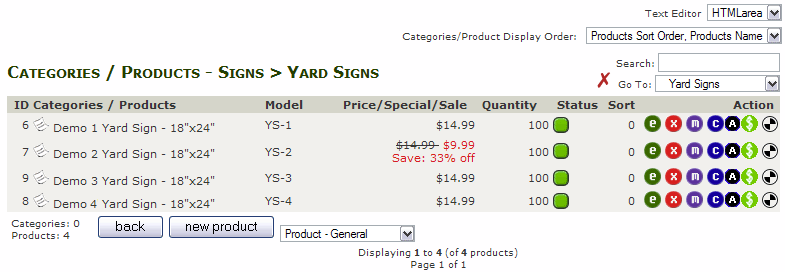
Click on the  button to edit the product and change the items just like you would if you were creating a new one. When you are done, press the
  button, double check your data and then press the
  button to commit your changes.
To change Options, just use the Attribute Controller as you did when you set them up.
CHANGING PRICES
If you want to change prices, but leave the rest of the product as it is, you can use the Product Price Manager. This in the Catalog menu.
Select the category that contains the products where you will be changing prices. Then you will see this screen:
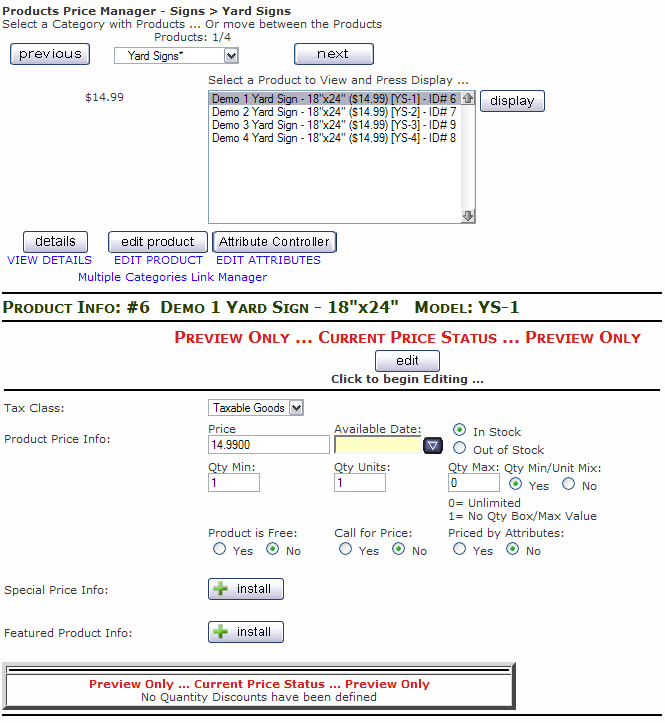
You'll see a list of products that are in the chosen category, so you can select one and then press the  button. This will change the screen from 'Preview Only' to a new screen:
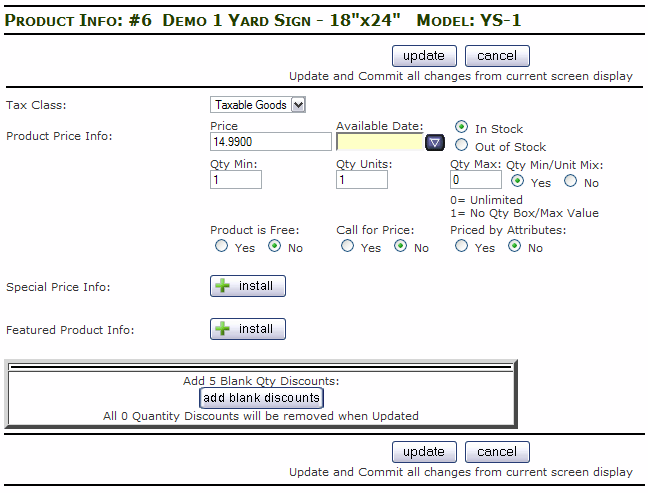
Now you can easily edit the price and leave the rest of the product 'as-is'. Make your changes, and press the button.
Another option on the this page is the  button. This will let you add discounts based on quantity buying for this product.
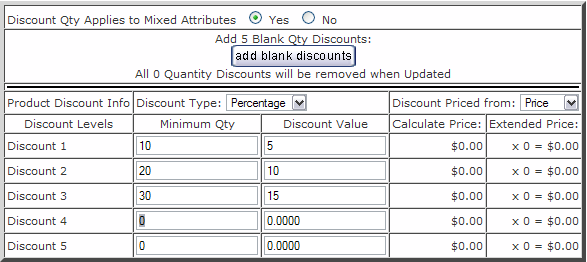
In this area, enter the Minimum Quantity that will be needed to obtain a discount, then the Value of the discount at that level. Make sure that you select the proper Discount Type.
NOTE: There is a module available that will allow you to create store-wide quantity discounts.
<< ATTRIBUTES
© 2011 - Art Whitton - myArtdepartment.com