ZEN CART
INSTRUCTIONS FOR ADDING PRODUCTS & CATEGORIES
CREATING PRODUCTS
Products are the items that you sell in your Zen Cart store. Each product should be unique, but can have various attributes (options). For example, a shirt can have a unique design on it, but come in S,M & L - as well as red, green and white. All these options for the one unique design can be created with just one product.
When adding products, it will help to have as much information about the product before you begin entering the data into the catalog.
NOTE: You have the ability to create one product, and then copy it to add similar products to your catalog. Keep this in mind as you create your products and attributes. If you have several products with the same options, create one and then copy it.
Each product will require the following:
Category – must be created before the product
Product name (should be unique)
Description (can be added to or edited later)
Price
Weight (required for calculating shipping)
Image (can have more than one)
Quantity in inventory (must be 1 or more to be able to sell the product)
Additional features for a product might include
Attributes/Options: such as size, color, etc
Manufacturer, manufacturer’s URL link to product
Additional images
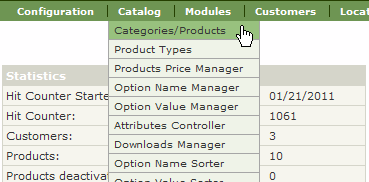
Login to the administration section of your Zen Cart store and find the Catalog > Categories/Products menu item.
Now you will see a list of Categories. Select the Category or navigate to the sub-category that your product belongs in. Remember that you cannot create a product in a category that contains a sub-category. If you already have products, you will see a list of products like this:
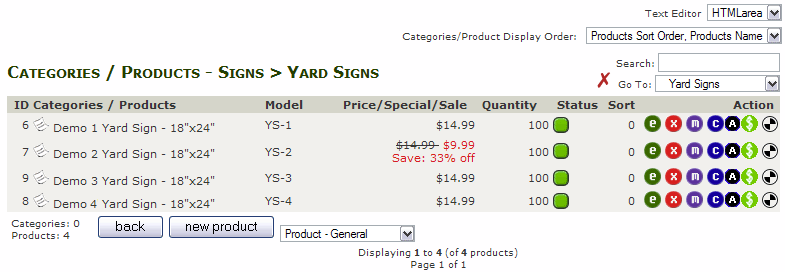
In the top right, you'll see a droplist for "Text Editor". This is used for editing your description. You can choose either Plain Text or HTMLarea. HTMLarea allows you to format the text like you would in a word processor and use bold or underline among other options. If you are familiar with formatting text, HTMLarea is a good option.
The next droplist allows you to sort the list of products - this will be important as you add more products. Below this is the Search box, which is very useful if you have 1,000's of products and want to find just a single specific one.
Below search is a droplist that lets you choose a Category and switch to it easily.
In the list you'll see:
ID: a unique number used by the system for each product
Categories/Products: The product's name
Model: The product's unique model number that you assigned it (optional).
Price/Special/Sale: This lists the current price of the product, including sale and special pricing.
Quantity: This is the current inventory for each product
Status: Green means that the product is Enabled and 'live'. You can click on this to change it to red (disabled and not available)
Sort: Just like the Categories, the sort order will allow you to display the products in a particular order.
Next you see a series of symbols:
 |
Edit the Product |
 |
Delete Product |
 |
Move Product (example: move to a different category) |
 |
Copy Product to either the same category or a new one |
 |
Go to the Attribute Manager for the selected product |
 |
Go to the Price Manager for the selected product |
 |
Metatags Undefined - Metatags are used by search engines to find pages - it is necessary to create Metatags for all products and categories. More info here. |
Most of these symbols should make sense to you - especially if you remember them from the Categories list. We'll look at the new ones later, but first we'll look at creating a product.
Remember what I wrote above about having information before you start this? It will be faster and you'll have less errors if you are prepared before you start defining a new product.
Click  to begin.
Filling out this form should be straightforward for the most part.
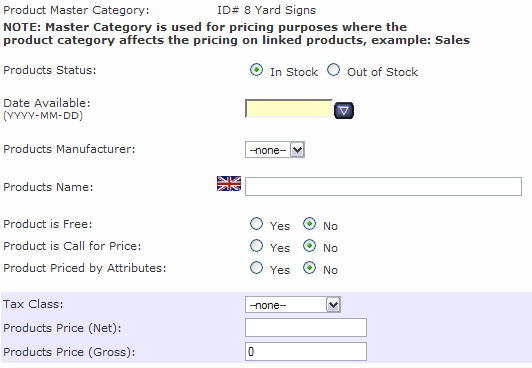
From the top, you'll see your "Product Master Category" - this is the category that your new product will be 'filed' under.
Product Status will usually be "In Stock", but you can create products before you receive or manufacture them and have their status as "Out of Stock". Of they are Out of Stock, indicate a "Date Available", or leave blank if the product is "In Stock".
Product Manufacturer: This droplist will be populated with a list of Manufacturers that you have already created. If you make all of your own products, this could be left blank.
Product Name: This should be an accurate and brief name that clearly describes the product.
Product is Free: (not in my store!) Use this for samples or other giveaways.
Call for Price: This is used for products that may be subject to a market price, or a highly competitive product whose price you don't want to advertise.
Product is priced by attributes: Only used when products have all different prices based upon their attributes. Not used much, as you can set some attributes to have a surcharge (example: XXL shirts sell for $2 more).
Tax Class: Most products are affected by sales tax, so choose the "Taxable Goods" option if this applies to the product.
Product Price (Net): This is your selling price.
Product Price (Gross): This will update to your selling price + sales tax.
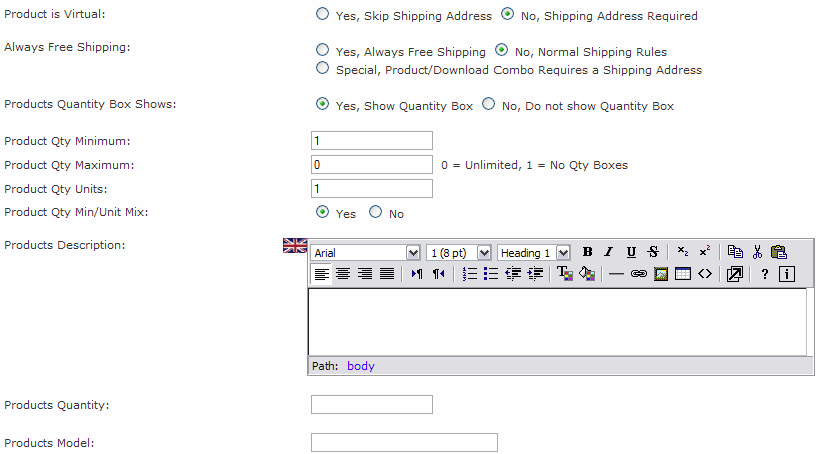
Product is Virtual: Use this for items that can be downloaded and will not be shipped.
Always Free Shipping: Will Free Shipping apply to this product? If not, then check "No, Normal Shipping Rules".
Products Quantity Box Shows: Choose Yes for most products so that customers can choose how many they want to order.
Product Qty Minimum: What is the minimum quantity of this product that your customer can order. Some items might be sold only in case quantities.
Product Qty Maximum: If you want to limit how many a customer would buy, enter it here.
Product Qty Units: Most items will be sold individually, but some items might be sold in groups (Example: 4 shock absorbers sold together).
Product Qty Min/Unit Mix: This would be used if you want to 'mix and match' attributes (Example: pick 3 kinds of cookies to make up a dozen).
Product Description: This is where you write about the features and selling points of your product. Give as much information as possible to help your customer make an informed decision and save frequent emails regarding products. In the example above, the HTMLarea option is shown.
Product Quantity: This is the number that you have in stock/inventory. You must have a quantity of 1 or more to be able to sell your product. Be careful not to forget this one or customers will not be able to buy your product!
Product Model: This is the model or inventory number of your product. This could also be a manufacturer's product number if you don't use your own inventory numbering system.
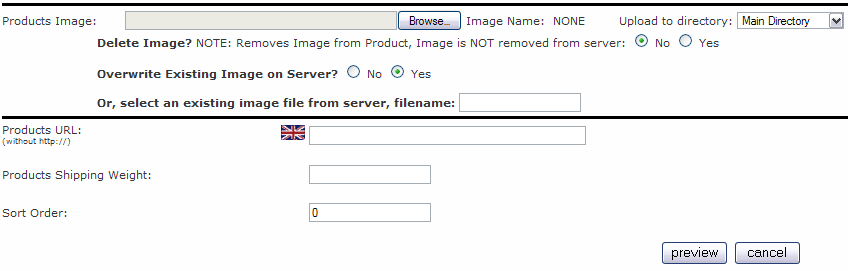
Product Image: This allows you to upload an image for your product from your computer. You want to name your files in an organized manner.
A note about image file names: |
Upload to directory: Make sure you select the correct directory to upload your new image to. If you forget, you're file system will become an unmanageable mess. Directories can be created using an FTP program.
Delete Image: Generally this will be defaulted and left at No.
Overwrite Existing Image on Server: Since you are using a good naming system for your files, you can leave this at Yes. If you are editing your product and upload an new image, you can overwrite the old image with the new one.
Or, select an existing image file from server, filename: If you have already uploaded all of your images, you can manually enter the name here. In most cases it would be best to just upload the image to avoid any errors of manual entry.
Products URL: If you are selling a product from a manufacturer that has a page for your product, it can be good for your customers to find more or updated information on the manufacturer's page. Do not add the http:// in the text box.
Products Shipping Weight: Enter the the weight of the product in it's packaging. This will be used for calculating the shipping when the customer checks out. A Tare can be added in Configuration/Shipping / Packaging to add in additional packing materials needed to ship the product. Don't forget to enter this value, or you will lose money on shipping!
Sort Order: A default of 0 (zero) will have the product sorted in alphabetical order. If you use sort order values, you can organize how the products will appear when listed by category.
Once you have all of you information entered, press the  button.
<< CATEGORIES
PRODUCTS, CONTINUED >>
© 2011 - Art Whitton - myArtdepartment.com