ZEN CART
INSTRUCTIONS FOR ADDING PRODUCTS & CATAGORIES
INTRODUCTION
If you have a Zen Cart store, you will need to create products for it. To have products, you will need categories to organize your products. This series of tutorials will show you how to create categories and products. Then it will show you how to add options to your products. The process might seem complicated at first, but like any software, practice will help it become second nature.
These tutorials are based on Zen Cart version 1.3.9h
CREATING CATAGORIES
Every product that you create will be in a category (shirts, buttons, etc). This is how the catalog is organized. Categories can contain sub-categories (Shirts > T-shirts > Mens T-shirts).
Before starting, I suggest writing down a list of categories you plan to use in the order that you want to have them displayed. This will help you stay organized as add them in Zen Cart.
Login to your Zen Cart administration section
Find the Catalog > Categories/Products menu item
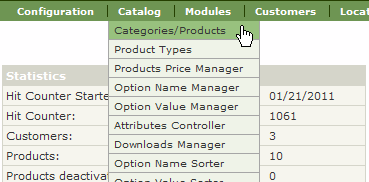
Once you click on the 'Categories/Products' button, you might see a list of existing categories.
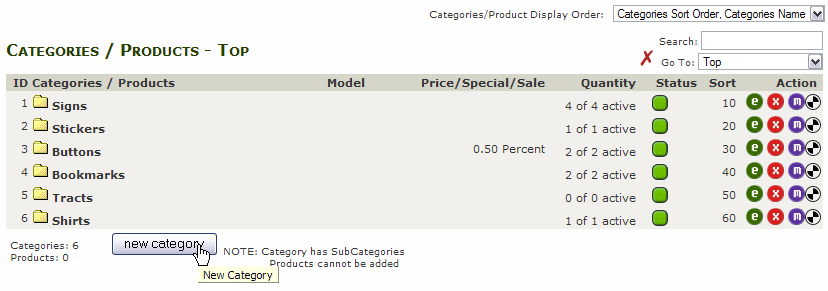
ID number is an internal reference for the program
Categories / Products lists the names of the categories (or products)
Model is used if displaying products
Price/Special/Sale will display all current sales based on category
Quantity shows how many products are in each category
Status: Green means active, Red means disabled (products in a disabled category will not be seen by the customer)
Sort shows the order in which the categories will be displayed in the menu and in other areas. It's good practice to leave a gap between order values in case you add more categories.
Next are 4 Status Indicators:
 |
Edit the Category or Product |
 |
Delete the Category or Product |
 |
Move the Category or Product (example: move to a sub-category) |
 |
Metatags Undefined - Metatags are used by search engines to find pages - it is necessary to create Metatags for all products and categories. More info here. |
At the bottom is the  button. This function should be obvious. When you press it, you'll see this screen:
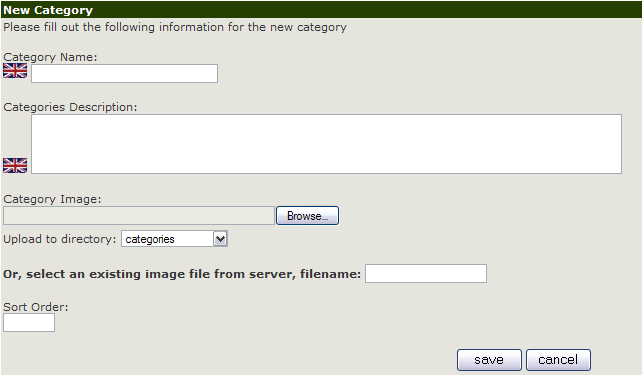
Enter a Name and (optional) Description. If you use images for your categories, you can upload one here from your computer. Images and descriptions display on the Category page. Finally, select a Sort Order to arrange this category in your menu.
Press the  button. To return to the category list.
Now you'll see the new category listed and displayed in order based on the Sort Order value you provided. You can check this in your online store now and see it there.
METATAGS
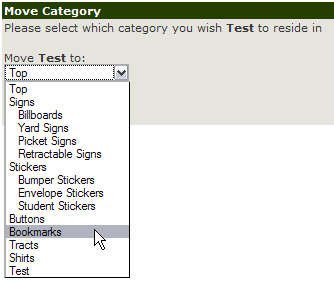
If you want this category to be a sub-category of another category, press the move button. Then you'll be able to select the 'Parent' category from a list of existing categories and press "Move" - or press cancel to return to the list.
NOTE: You cannot move a category to a parent category that contains products. A category can either contain sub-categories or products - not both.
Once you have your new category and it is in the correct order, press the Metatags button on the category list page. On that page, you can define the Title, Description, and Keywords for the new category.
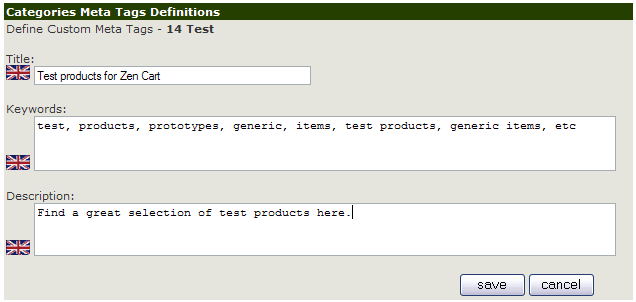
Title: This is what the browser will display in the title bar to the customer.
Keywords: Search engines will look at these to see what the relevant content is and rank the page accordingly.
Description: Search engines use these to see content, as well as show it in the search engine results.
If you want to have your products and categories found and ranked by search engines such as Google, clear and accurate metatags are essential. Adding misleading metatags can hurt your ranking.
Press "Save" and you'll see that the metatag symbol  has changed color to indicate the they are defined.
SUMMARY
Categories are required to organize your products so that your customer can easily find them. Creating sub-categories with similar products will further help to organize your menu, and keep it from being a long mess with dozens of categories to choose from. Create categories effectively and your store will be easier to navigate for customers and easier for you to organize your products.
If you want to change anything about your Category, use the edit button.
>> PRODUCTS
© 2011 - Art Whitton - myArtdepartment.com