ZEN CART
INSTRUCTIONS FOR ADDING QUANTITY DISCOUNTS
INTRODUCTION
This tutorial will explain how to create 'price discount' based on quantity for items that need them.
CREATING QUANTITY DISCOUNTS
Start by logging in to your Zen Cart dashboard and navigate to Catalog > Product Price Manager:
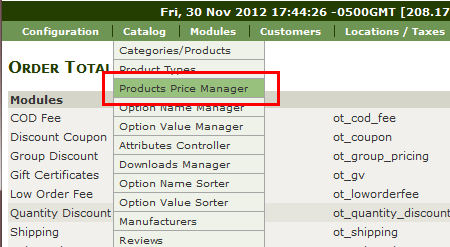
This will show a new page that looks like the one below. Use the menu to navigate to the catagory that your products are in.
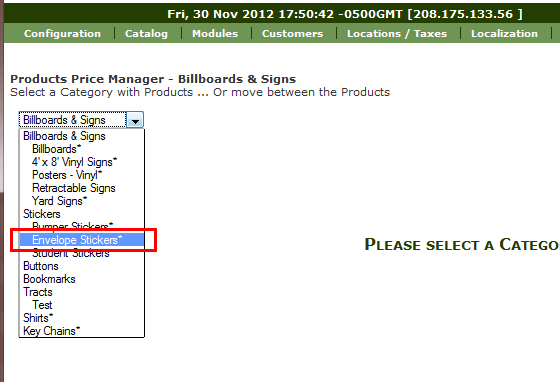
Once selected you will see a list of products that in that catagory. Choose the product from the menu and then press "Select".
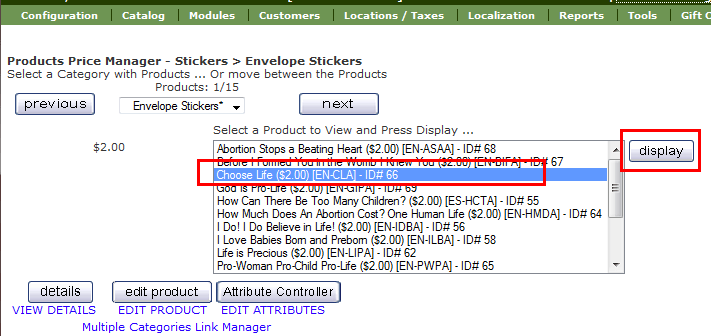
This will show the pricing details for that product. Look to the bottom of the page for this edit button (and press it):

This will show a new button, click it to display a table that will allow you to enter your discounts. Later you can press this button again if you need more than 5 levels of discounts.
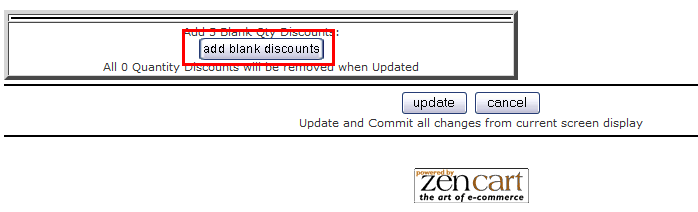
Now you will see a table like the one below. Use this area to enter your discounts. I highly recommend that you choose the "Actual Price" option in the menu below to avoid errors.
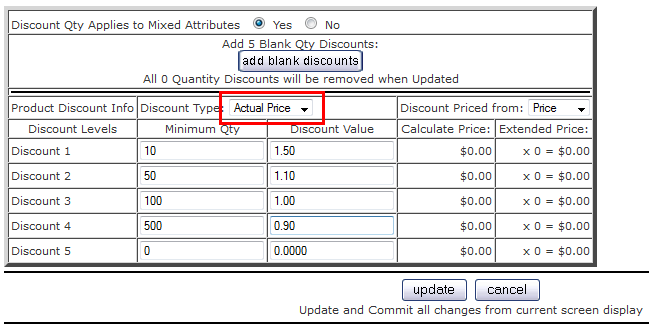
Once you have entered the data, press the update button and your changes will be saved. You can now check the item in your storefront to see that the discounts have been applied.
>> PRODUCTS
© 2011 - Art Whitton - myArtdepartment.com